Tidal Visualizer
Your hi-res Tidal audio deserves hi-res visuals. vizz.fm is a free, browser-based visualizer that reacts to every frequency in your lossless and Dolby Atmos tracks in real time.
See it in action
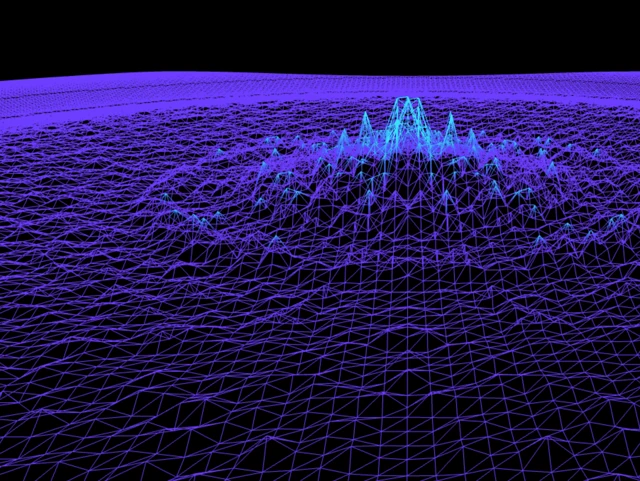
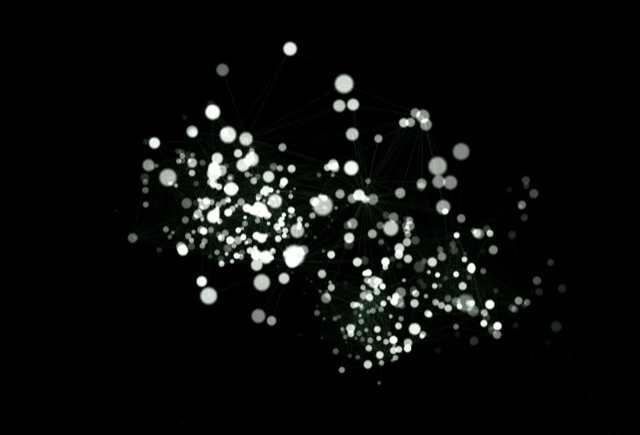
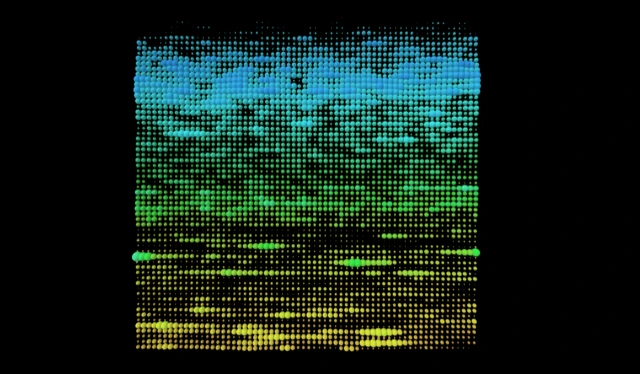
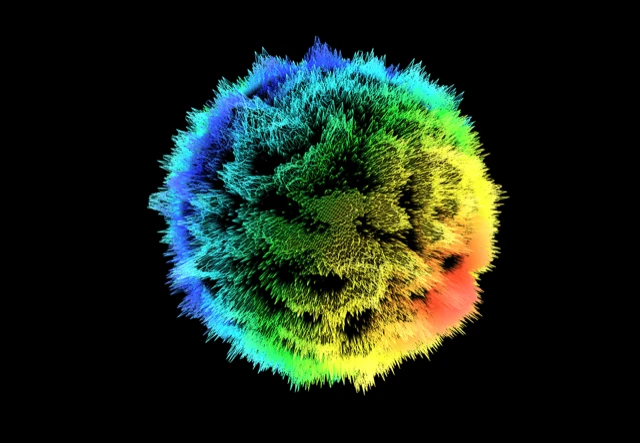
Click any preview to run it with your own music

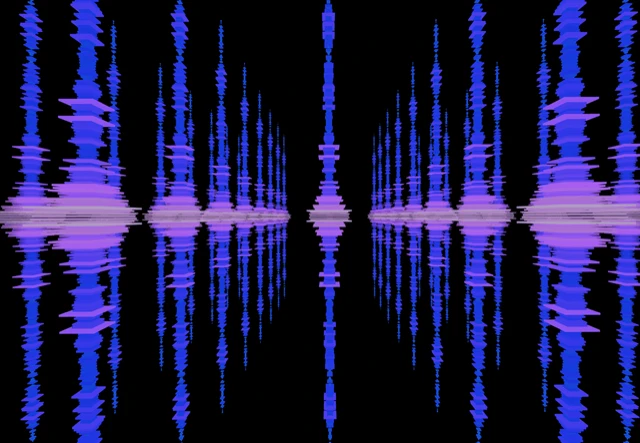

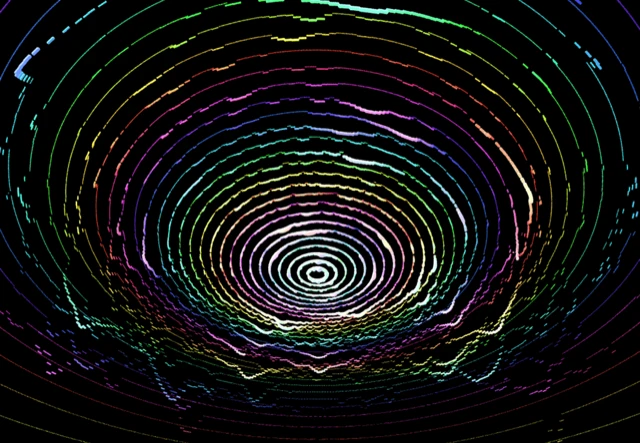

How to visualize your Tidal music
Tidal is built around audio quality: lossless, hi-res, Dolby Atmos, Sony 360 Reality Audio. If you're paying for that level of fidelity, you should be able to see the difference. Higher-quality audio contains more frequency detail, and vizz.fm's frequency analysis picks up every bit of it.
The result is visualizations that are more detailed and responsive than what you'd get from a compressed stream. Subtle instrument layers, cleaner high-end detail, and richer bass all show up in the visuals in ways you can actually see. It's the visual equivalent of the audio upgrade you're already paying for.
How to connect Tidal to vizz.fm
In Chrome, Edge, or Brave, you can capture your computer's audio with a few clicks using screen sharing, no extra software needed. The visualizer gets a direct, full-quality feed of whatever Tidal is playing.
Play something on Tidal
Open Tidal and start playing anything. The audio just needs to be running.
Open vizz.fm and select System audio
In the audio source picker, choose System audio. Your browser opens its “Choose what to share” dialog.
Share with audio turned on
Pick the Tidal window (or your entire screen), turn on “Also share system audio” at the bottom of the dialog, and click Share. The visualizer starts reacting immediately. Our screen sharing guide walks through it with screenshots.
Prefer a virtual audio device, or using a different browser? Follow our system audio capture guide to route audio with an application like BlackHole, Loopback, or VoiceMeeter, then select the device as your Microphone input. It's a one-time setup that takes a few minutes and works in every browser.
Platform notes
Tidal has both a desktop app and a web player. Either works with the system audio capture approach. The desktop app supports higher-quality audio tiers (HiFi Plus, Dolby Atmos), so if audio quality matters to you, use the desktop app for the richest frequency data.
On mobile?
Virtual audio devices aren't available on phones, but the microphone works as a quick alternative. Play Tidal on a nearby speaker, open vizz.fm, and select Microphone. It won't be as clean as routing audio directly, but in a quiet room it works better than you'd expect.
What can you do with it?
Once Tidal is connected, you have full control over how your music looks. vizz.fm includes dozens of WebGL visualizers (particle systems, waveforms, shaders, 3D meshes), all reacting to your audio in real time. Every visualizer has its own set of controls for colors, speed, intensity, and geometry.
You can also layer on effects like kaleidoscope, bloom, and CRT scanlines. Save your favorite combinations as presets and switch between them mid-song. If you want to go deeper, you can tie any slider to a specific frequency range: bass drives particle size, treble drives rotation, whatever combination feels right.

Hi-fi audio, visuals to match.
The better the source, the better the visuals.