YouTube Music Visualizer
Give your YouTube audio a visual upgrade. vizz.fm transforms any YouTube content (music, podcasts, live streams) into real-time WebGL visuals directly in your browser.
See it in action
Click any preview to run it with your own music
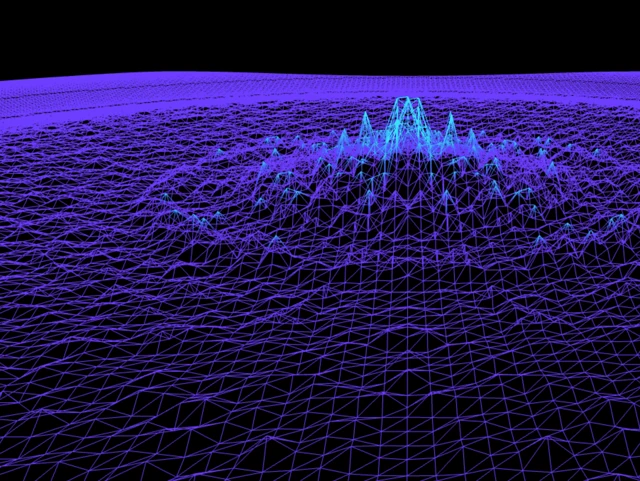
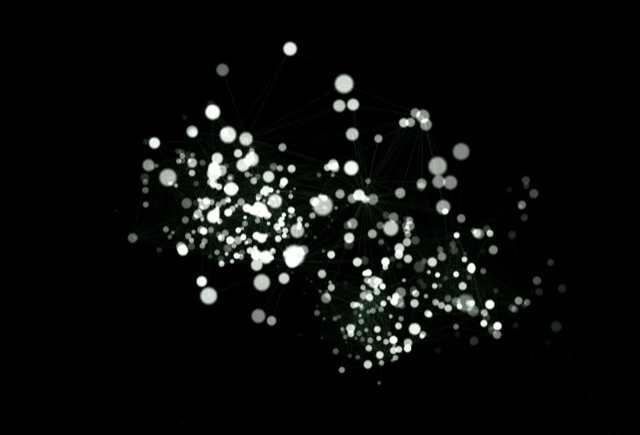

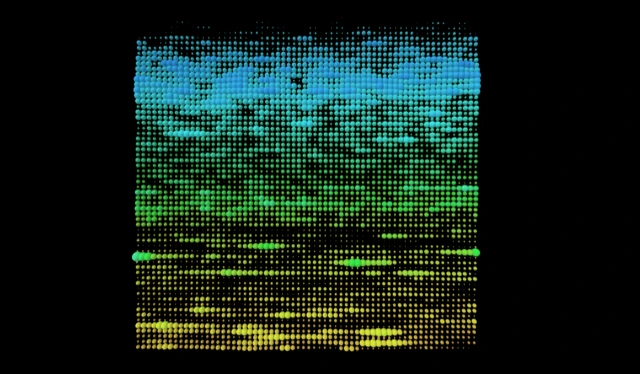
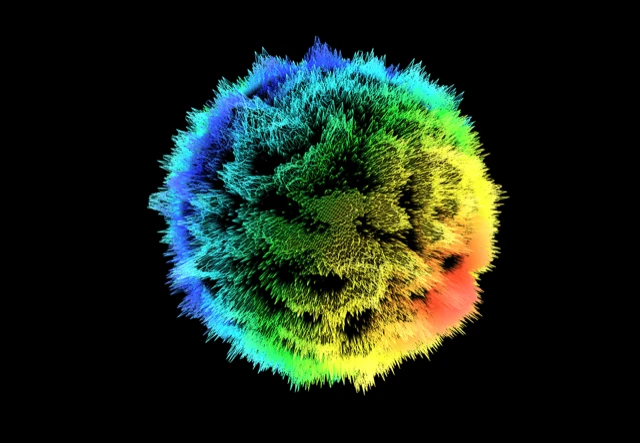
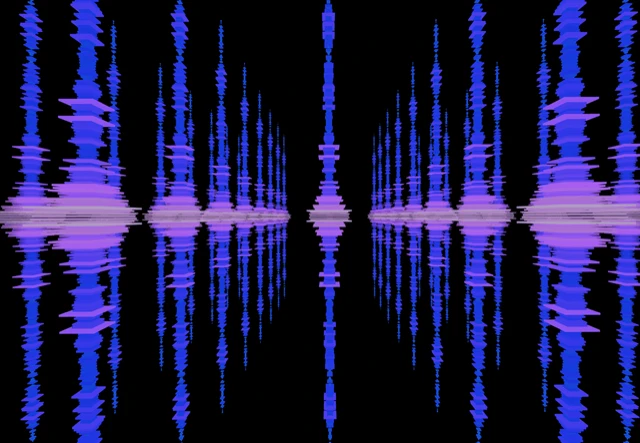

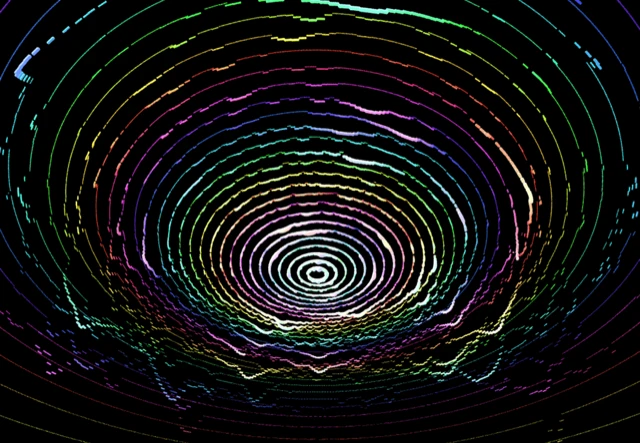
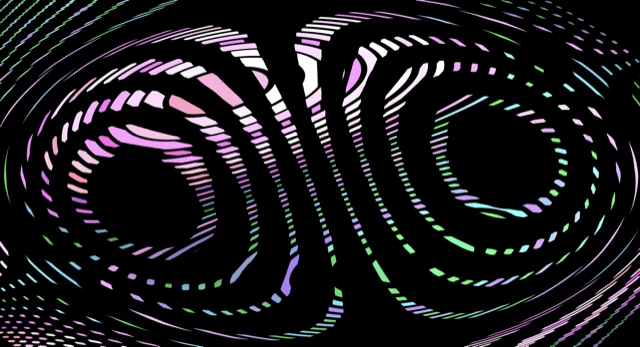
How to visualize your YouTube music
YouTube is already visual, but music videos aren't always what you want. Lyric videos, static album art, podcast recordings, lo-fi beats streams: sometimes the audio deserves better visuals than what the uploader provided.
vizz.fm lets you create your own visual layer for any YouTube audio. Whether it's a full album upload, a live concert recording, or a 10-hour ambient mix, the visualizer reacts to the actual audio content in real time. The music you're already listening to on YouTube suddenly has visuals worth watching.
How to connect YouTube to vizz.fm
In Chrome, Edge, or Brave, you can capture your computer's audio with a few clicks using screen sharing, no extra software needed. The visualizer gets a direct, full-quality feed of whatever YouTube is playing.
Play something on YouTube
Open YouTube and start playing anything. The audio just needs to be running.
Open vizz.fm and select System audio
In the audio source picker, choose System audio. Your browser opens its “Choose what to share” dialog.
Share with audio turned on
Pick the YouTube window (or your entire screen), turn on “Also share system audio” at the bottom of the dialog, and click Share. The visualizer starts reacting immediately. Our screen sharing guide walks through it with screenshots.
Prefer a virtual audio device, or using a different browser? Follow our system audio capture guide to route audio with an application like BlackHole, Loopback, or VoiceMeeter, then select the device as your Microphone input. It's a one-time setup that takes a few minutes and works in every browser.
Platform notes
Since YouTube runs in the browser, you're already halfway there. The system audio approach captures everything coming out of your computer, so it works whether you're watching a music video, a live stream, or a YouTube Music playlist.
You can run YouTube in one browser tab and vizz.fm in another, or even on a second monitor for a dual-screen setup. System audio capture works at the system level, so it doesn't matter which app or tab is producing the audio.
On mobile?
Virtual audio devices aren't available on phones, but the microphone works as a quick alternative. Play YouTube on a nearby speaker, open vizz.fm, and select Microphone. It won't be as clean as routing audio directly, but in a quiet room it works better than you'd expect.
What can you do with it?
Once YouTube is connected, you have full control over how your music looks. vizz.fm includes dozens of WebGL visualizers (particle systems, waveforms, shaders, 3D meshes), all reacting to your audio in real time. Every visualizer has its own set of controls for colors, speed, intensity, and geometry.
You can also layer on effects like kaleidoscope, bloom, and CRT scanlines. Save your favorite combinations as presets and switch between them mid-song. If you want to go deeper, you can tie any slider to a specific frequency range: bass drives particle size, treble drives rotation, whatever combination feels right.

Give YouTube something worth watching.
Works with music videos, live sets, or a ten-hour mix.