Music Visualizer for Streaming
Add real-time audio visuals to your Twitch, YouTube, or Discord stream. vizz.fm runs in your browser and works with OBS, Streamlabs, or any screen capture tool. Free, no plugins required.
Why use a visualizer for streaming?
Dead air kills streams. When you're playing music between segments, in a BRB screen, or running a music-focused stream, a static image or looping GIF isn't enough. Viewers want something to look at, and a real-time audio visualizer that reacts to the actual music is infinitely more engaging than a stock animation.
vizz.fm gives your stream a professional visual layer without any of the overhead. There's no plugin to install in OBS, no overlay service to configure, no subscription to maintain. It runs in a browser tab and you capture it like any other window source.
The visuals are genuinely reactive: they respond to bass, mids, and treble in real time, not on a pre-programmed loop. Your viewers can see the music, not just hear it. That difference is noticeable.
How to set it up
Setting up vizz.fm for your stream takes about two minutes.
Open vizz.fm and connect your audio
Launch the music visualizer app in a browser tab. For the best results, capture your system audio so the visualizer reacts to the same music your stream hears. Alternatively, use the microphone input for a quick setup.
Pick a visualizer and customize it
Choose a scene that fits your stream's aesthetic. Adjust colors to match your brand, dial in the sensitivity, and save it as a preset so you can switch back to it instantly.
Capture it in OBS
In OBS (or Streamlabs, XSplit, etc.), add a Window Capture or Browser Source pointed at the vizz.fm tab. Resize and position it in your scene. For full-screen visuals, make it the entire canvas. For an accent, crop it to a strip or corner.
Go live
That's it. The visualizer runs continuously and reacts to your audio in real time. Switch presets on the fly if you want to change the look mid-stream.
Tips
Match your brand colors. Every visualizer lets you customize colors. Set them to your stream's palette so the visuals feel integrated, not bolted on.
Save multiple presets. Create a few different looks: one for chill music, one for hype moments, one for BRB screens. Switch between them with a click.
Use a simpler visualizer for background. If the visualizer is behind your webcam or game capture, pick something subtle (waveform lines, dot grid) so it adds atmosphere without competing for attention.
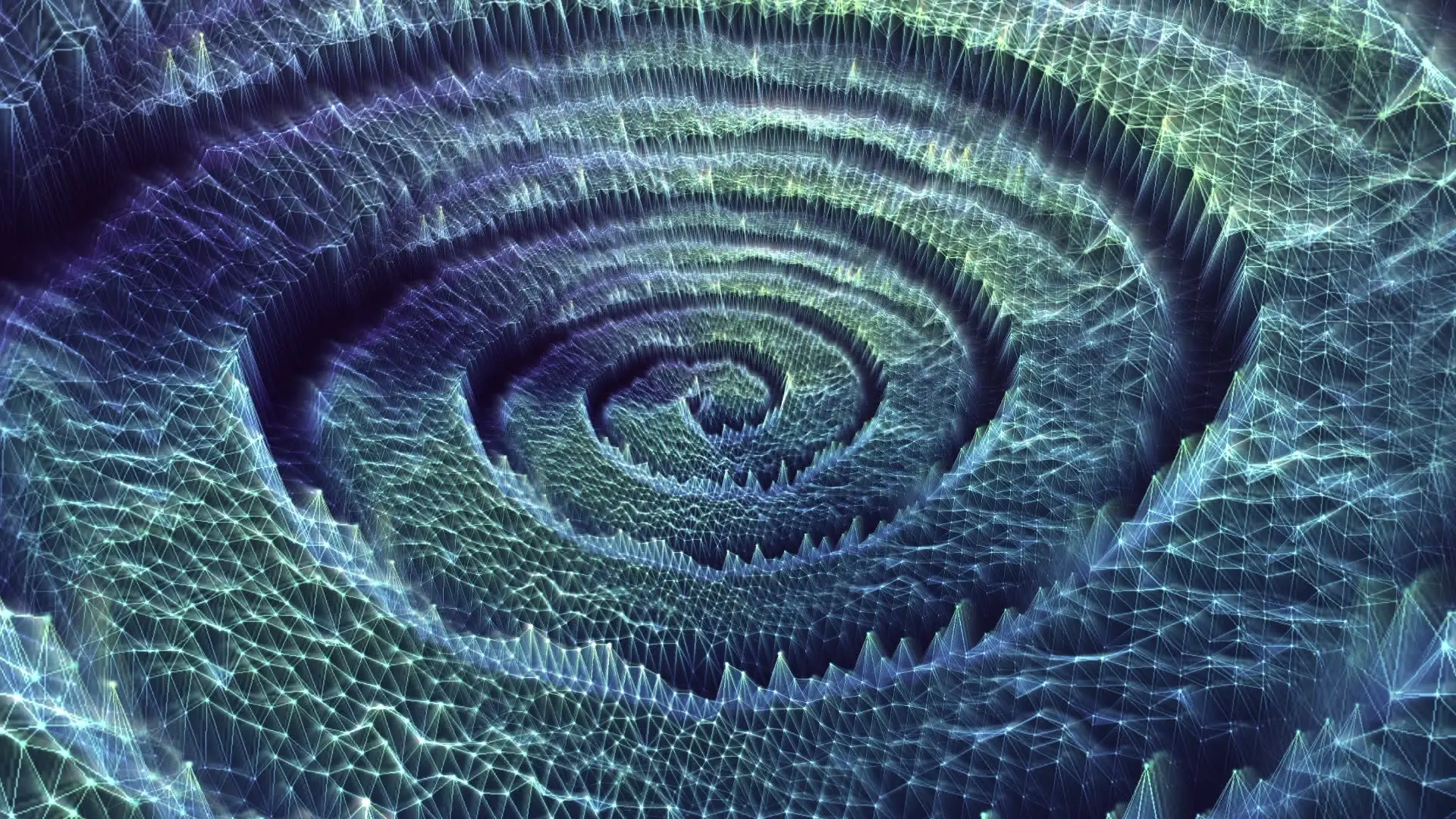
Full-screen for music streams. If music is the main event (DJ sets, lo-fi streams, listening parties), go full-screen with a more complex visualizer (particle dance, mesh grid, reactive sphere) and let the visuals be the show.
Works with any audio source
vizz.fm works with whatever you're playing. Route audio from Spotify, YouTube, Apple Music, SoundCloud, or any other app via screen sharing or a virtual audio device. Or upload files directly, or just use the microphone to pick up whatever's playing in the room.
Kill the dead air.
Capture it in OBS in about two minutes.