Music Visualizer for Twitch
Add real-time audio visuals to your Twitch stream. vizz.fm runs in your browser, reacts to every beat, and captures cleanly in OBS. Free, no plugins, no installation.
Why use a visualizer for Twitch?
Twitch music streams live and die on atmosphere. A still image on loop or a generic BRB screen doesn't do anything for your viewers. Real-time visuals that actually move with the music keep people watching, even when you're not on camera.
Twitch is also where lo-fi streams, listening parties, and DJ sets have built real audiences. If that's your format, your visual setup matters as much as your track selection. A static overlay doesn't cut it. You want something that responds to what's actually playing.
vizz.fm gives you that without the VJ software overhead. Run it in a browser tab, capture it in OBS, and you have a live visual layer that reacts to your music, matches your stream's aesthetic, and can switch looks on the fly.
How to set it up
Setup takes about two minutes.
Open vizz.fm and connect your audio
Launch the music visualizer app in a browser tab. For the cleanest signal, capture your system audio so the visualizer reacts to exactly what your stream hears. Microphone input works too for a faster start.
Pick a visualizer and customize it
Choose a scene that fits your channel's aesthetic. Set the colors to match your brand, dial in the sensitivity, and save it as a preset so you can come back to it instantly.
Capture it in OBS
Add a Window Capture or Browser Source pointed at the vizz.fm tab. Resize and position it in your scene: full canvas for a music stream, a cropped section or background layer for a chatting stream.
Go live
The visualizer runs continuously and reacts to your audio in real time. Switch presets on the fly if you want to change the look mid-stream.
Tips
Dark backgrounds read best on stream. Use solid black or a deep gradient so the visuals pop without washing out your webcam, text overlays, or alerts.
Save presets before you go live. Don't spend the first 10 minutes on air tweaking settings. Build your looks beforehand (one for chill music, one for hype moments, one for BRB screens) and switch between them with a click.
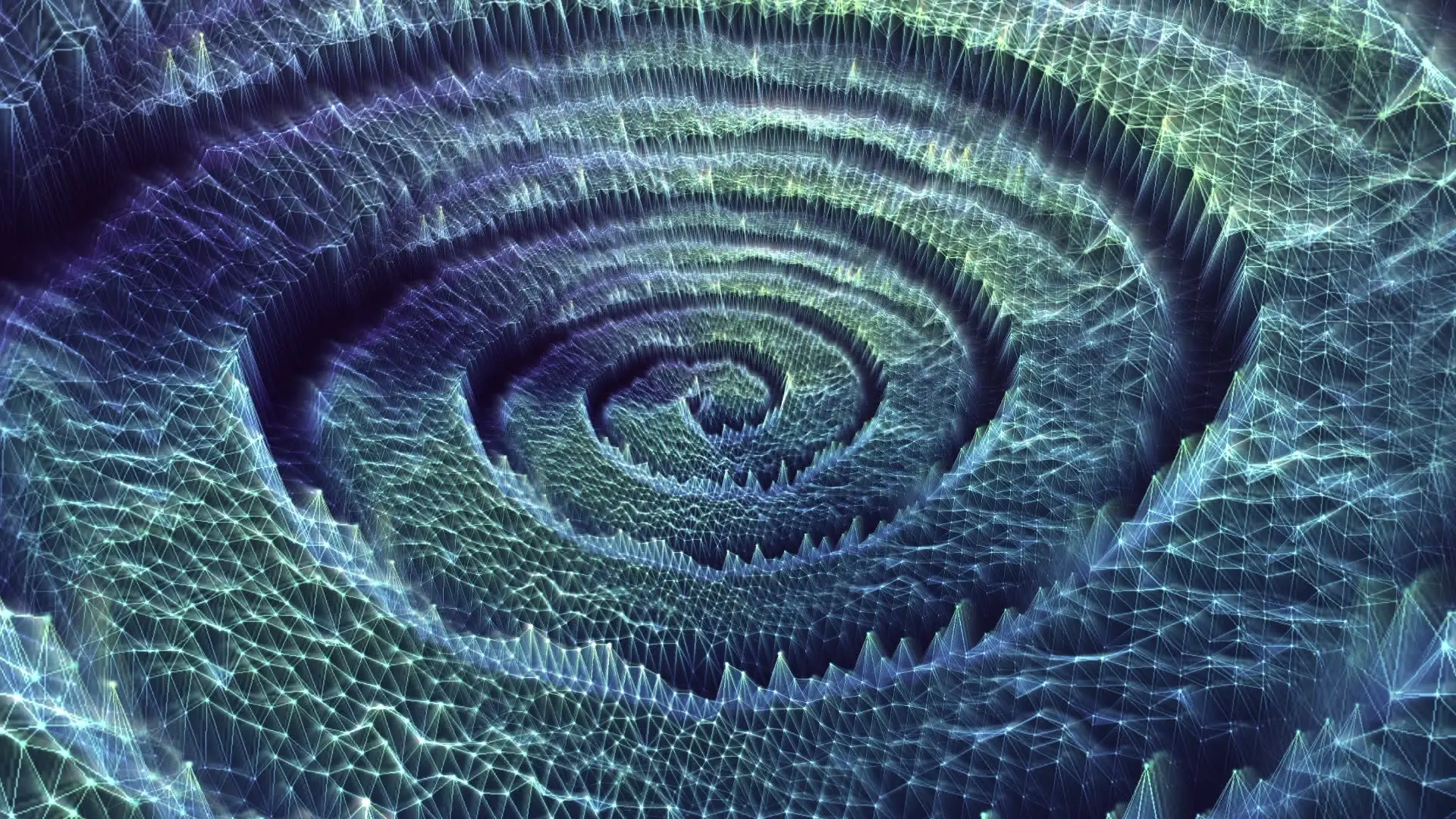
BRB screens: go big. When you're away, hide the controls panel and let a complex visualizer (particle dance, mesh grid) fill the screen. It gives viewers something to watch and keep the stream open.
Background music: go subtle. If the visualizer is behind your webcam during a chatting stream, use something minimal (waveform lines, dot grid) so it adds atmosphere without competing for attention.
Lo-fi and music streams: let it be the show. Full-screen, complex visualizer, no UI. If music is the main event, the visuals should be too.
Works with any audio source
vizz.fm works with whatever you're playing. Route audio from Spotify, YouTube, Apple Music, SoundCloud, or any other app via screen sharing or a virtual audio device. Or upload files directly, or just use the microphone to pick up whatever's playing in the room.
Give your stream a pulse.
Capture it in OBS in about two minutes.