Visualize Spotify, Apple Music, or anything with screen sharing
Modern browsers can link vizz.fm to audio playing from any application on your computer. This lets you visualize Spotify, Apple Music, or anything else you're listening to at full quality, with no extra software and no microphone. It just takes a few clicks.
What you need
We recommend Chrome, Edge, or Brave on a desktop or laptop. On Windows this has worked for a while. On macOS you need Chrome 141 or newer and macOS 14.2 or newer, since that's when Apple started letting browsers capture system audio. Firefox doesn't support audio while screen sharing, so consider using a virtual audio device if you're using Firefox.
Step 1: Choose System audio as your source
Open the vizz.fm app, click the audio source button, and pick System audio. Your browser will open its “Choose what to share” dialog.
Step 2: Pick the app playing your music
Switch to the Window tab and select your music app, like Spotify or Apple Music. It must already be open and preferably playing music.
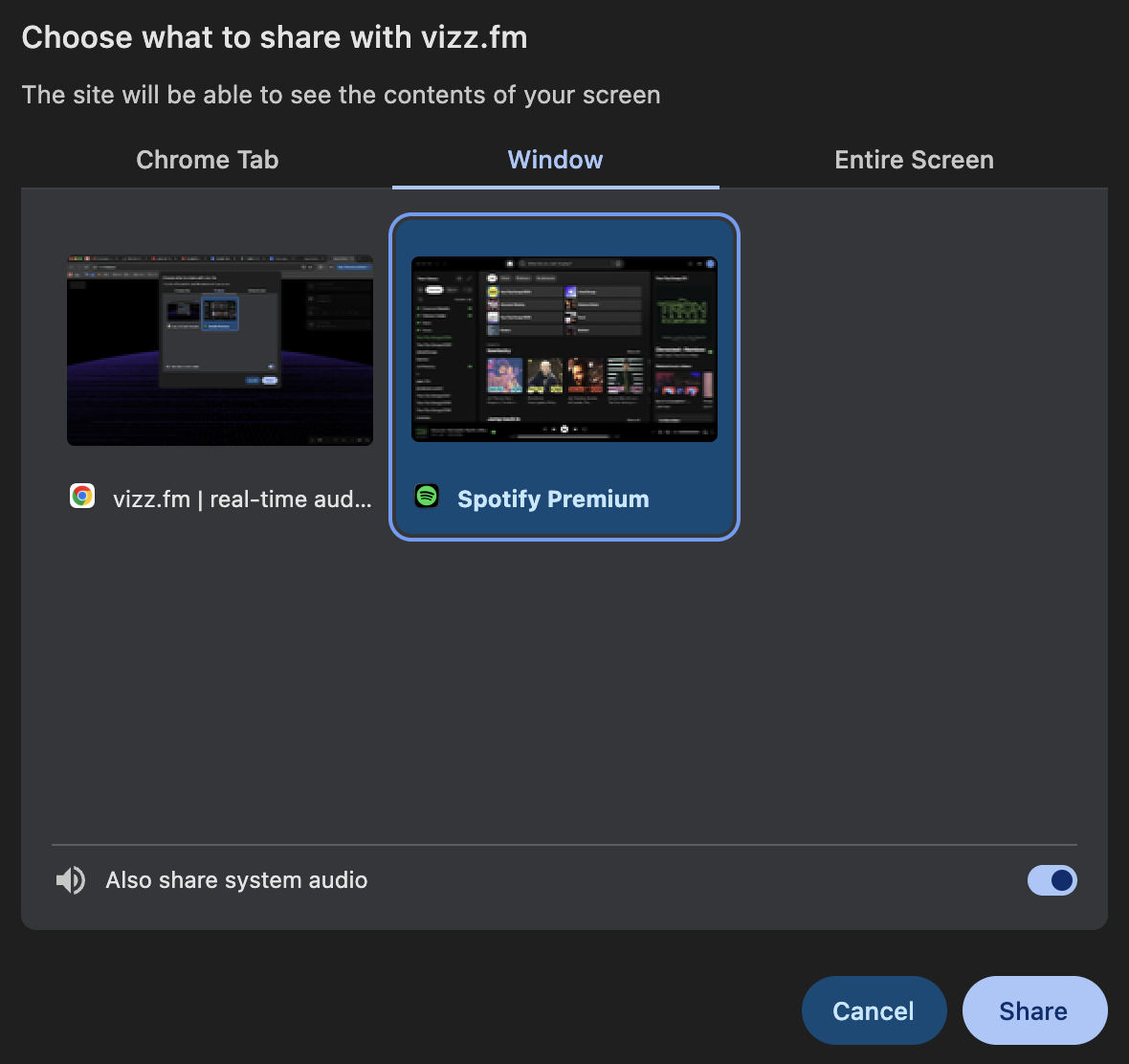
Sharing your Entire Screen works exactly the same way, and is a good option as well.
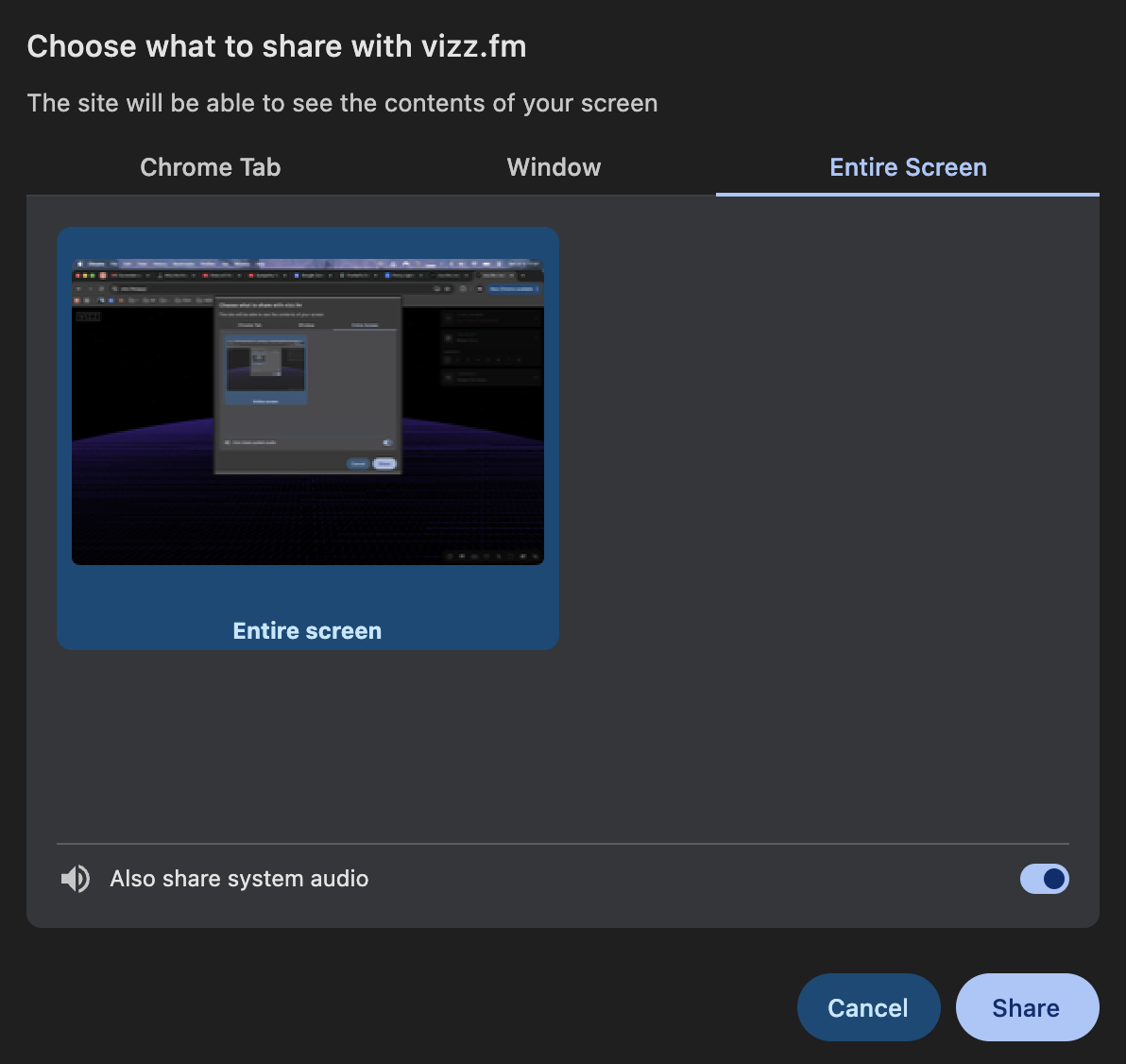
Step 3: Turn on “Also share system audio”
This is the important part! At the bottom of the dialog, flip on Also share system audio. Browsers leave it off by default, and without it the visualizer gets no sound. Then click Share.
That's it, press play!
Play your music and the visualizer will react in real time. You'll see System Audio as your active source in the vizz.fm app.
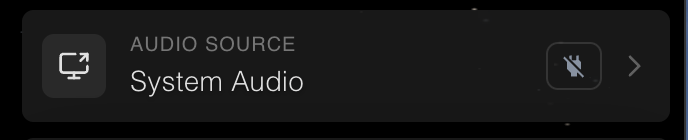
Your browser will show a small indicator while sharing audio. Click Hide and it stays out of the way. You can stop sharing anytime from vizz.fm or by clicking this button.

Why not share a tab?
There's also a Tab-sharing option, and it does capture audio from browser sources like YouTube. But it's a poor choice because it pins a big banner across the top of the screen. This banner persists the entire time you're sharing and cannot be dismissed.

So sharing your Window and Entire Screen are both better options: they capture everything your computer plays, and instead of the banner you only get the small indicator shown above, which the Hide button minimizes.
Troubleshooting
The visualizer isn't reacting
The issue is almost always the audio toggle. Stop sharing, pick System audio again, and make sure “Also share system audio” is switched on before you click Share. Also check your music is actually playing and your system volume isn't muted (the captured feed follows your system audio).
There's no audio toggle in the dialog
Your browser or OS doesn't support system audio capture yet (Firefox, or macOS older than 14.2). The virtual audio device setup works everywhere and delivers the same direct-quality feed. However, it requires some extra setup.
Still having issues?
Shoot me an email or reach out below.

See your music in real time.
No downloads, no sign-up. Open the app, share your audio, and go.