Turn any song into a music visualizer video
Load a track into vizz.fm, pick a scene, and export an MP4 with the audio synced to the frame. Vertical for Reels and TikTok, 1080p or 4K for YouTube. The video renders on your machine, frame by frame, so nothing is uploaded and nothing waits in a queue.
Works on Chrome or Edge on desktop.
See it in action
Click any preview to run it with your own music
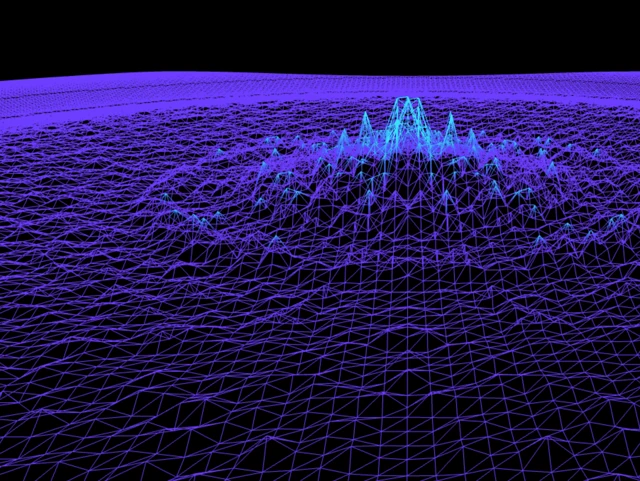


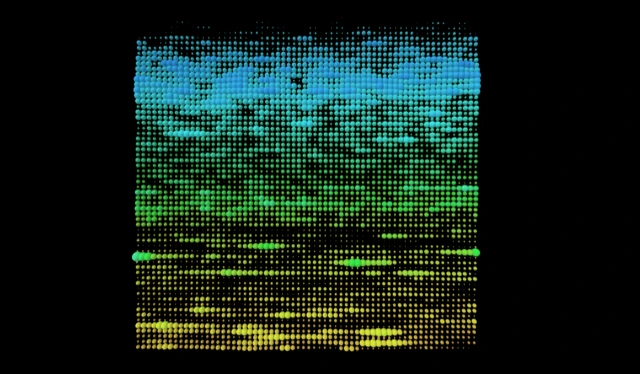

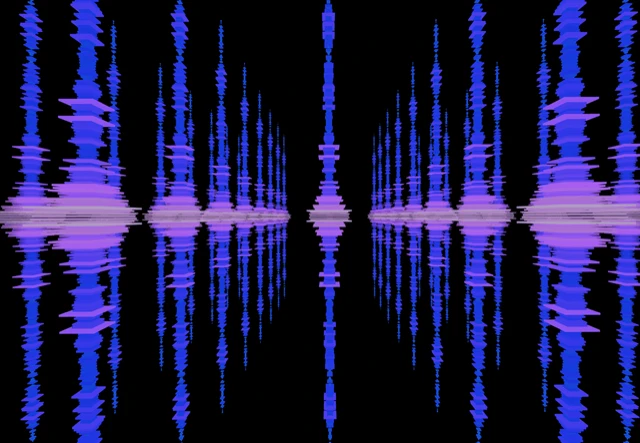



The scenes are real-time 3D, not simply a waveform pasted over some cover art. Each one has its own controls for color, motion and how hard it reacts to the music, and the export is a recording of exactly what you tuned. Two people exporting the same song will get two different videos.
How it works
Exporting a video works in Chrome or Edge on a desktop and when loading an audio file, so have an MP3 or WAV of the track ready.
- Open the visualizer and pick a scene. Tune it to the track. Save it as a preset if you want the same look on the next release.
- Click the video button in the control bar and load the audio file. Choose a size, 30 or 60 fps, and a quality level.
- Drag the clip handles to the section you want, or leave them at the ends for the whole track.
- Preview the video at the export size, and then click Export when you're ready to start rendering the video to disk.
Pick a size
Vertical
1080 × 1920. Reels, TikTok, Shorts and Spotify Canvas.
1080p and 4K
1920 × 1080 or 3840 × 2160. YouTube, or a file to hand to an editor.
Square and Portrait
1080 × 1080 and 1080 × 1350. Feed posts and Apple Music motion artwork.
Window
Whatever size the visualizer is on screen right now.
Every size exports at 30 or 60 fps. Instagram and TikTok play back at 30, so 60 mostly matters for YouTube and for files you plan to edit. It roughly doubles the file size.
Useful for
Reels, TikTok and Shorts
Export a vertical clip of the best 15 to 30 seconds and post it. Try the same section in a few different scenes.
YouTube uploads
Export the full track at 1080p or 4K and upload it. Better than a static cover art, and finishes in just a few minutes.
Spotify Canvas
Export 3 to 8 seconds of vertical video and upload it in Spotify for Artists. The Spotify Canvas guide walks through it.
Looping on a screen
Render a long clip once and loop it on a TV or projector at a party, a DJ set, or in a venue. No laptop running the visualizer required.
Rendered, not recorded
A screen recording captures whatever the browser managed to draw while the recorder was running. Export draws every frame in order, at the chosen size, regardless of how fast your machine is, and writes the audio into the same file. No dropped frames, no capture card, no syncing in an editor.
Screen recording is still the route for Safari and Firefox, and for audio that is not a file yet: Spotify, a DAW, a microphone. The OBS guide covers that setup.
Common questions

Make a video of your track.
Load a song, select a visualizer, export a music video.